When SMS alerts first shipped, the obvious question was how to manage them across your entire Have List without clicking hundreds of bell icons individually. That's what we shipped today: bulk alert management that lets you set your alert strategy all at once based on card value.
The basic idea
Rather than enabling alerts per card, you now can say "give me alerts on any card worth 100 points or more" and we'll enable alerts on all matching cards instantly. You can also do the reverse—"turn off alerts on cards worth less than 50 points"—to reset your preferences without manually toggling each one. It's a single decision instead of hundreds of individual clicks.
Getting started
Step 1: Verify your phone number
SMS alerts require a verified phone number in Settings. If you've already set up two-factor authentication, you're done—you can use the same number for both 2FA codes and trade alerts. If not, head to Settings and complete phone verification before enabling alerts. It takes about a minute.
Step 2: Open your Have List
Navigate to your Have List. You'll see your cards displayed in a table with an Alert column showing bell icons—some filled (enabled) and some outline (disabled), depending on what you've already configured.
Step 3: Click the menu and select Alerts
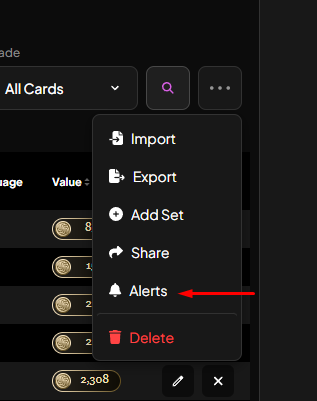
Click the three-dot menu button in the top right of the table. You'll see options for Import, Export, Add Set, Share, and now Alerts. Click Alerts to open the bulk management modal.
Step 4: Choose your threshold
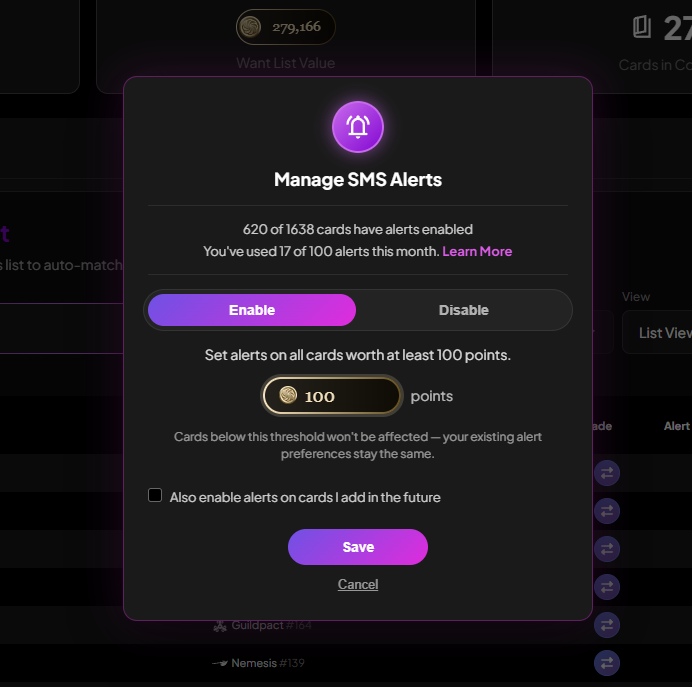
The modal shows you a toggle between Enable and Disable mode. For your first time, you probably want Enable. Below that, you'll see a point value input—default is 100 points. This is the threshold. When you save, the system will enable alerts on all cards in your Have List worth 100 points or more.
You can adjust this number to match your trading style. High-volume traders might set it to 50 points so they're alerted about staples and uncommons. Collectors focused on chase cards might set it to 500 points. There's no right answer—it depends on your Have List and how many alerts you want to receive per month.
Step 5 (Optional): Enable alerts on future cards too
Check the box that reads "Also enable alerts on cards I add in the future." If you enable this, every new card you add to your Have List will automatically have alerts turned on (assuming it meets your threshold criteria). This saves you from having to re-run bulk management every time you add cards.
Step 6: Save
Click Save. The system processes instantly. You'll see a confirmation toast telling you how many cards matched your threshold and had alerts enabled.
Disabling alerts the same way
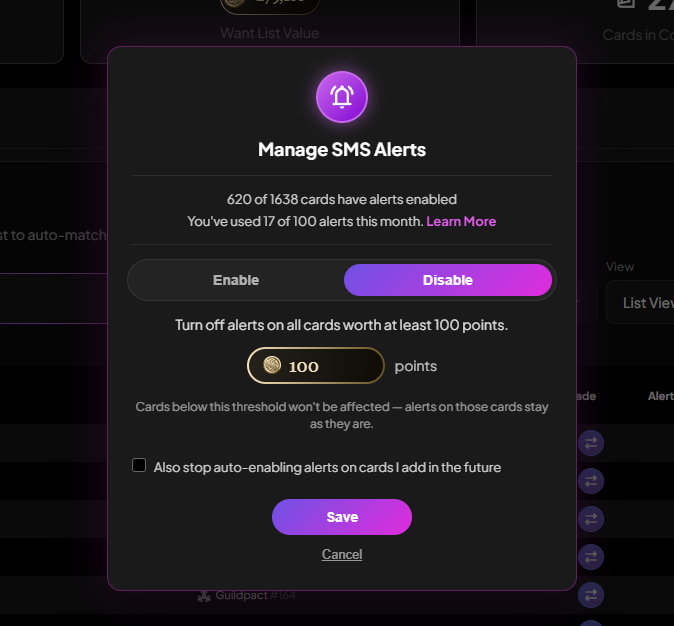
If you want to turn off alerts on low-value cards—say, everything below 25 points that's cluttering your alert volume—open the modal again, flip the toggle to Disable, set the threshold to 25 points, and save. All cards below 25 points will have alerts turned off. Cards above 25 points keep their existing alert state.
The beauty of this is that you can run Enable and Disable in sequence if you want to fine-tune. Enable on cards worth 100+, then Disable on cards worth less than 20. Or any combination that matches how you want to trade.
A few things to know
Cards below your threshold are never touched, so your existing alert preferences on low-value cards stay exactly as they are. The system is purely additive (for Enable) or subtractive (for Disable)—it never inverts state.
Your monthly alert limit still applies, so if you're a free user with 5 alerts per month, enabling alerts on 500 cards doesn't mean you'll get 500 alerts—it means you'll get 5 per month distributed across the cards that get wanted first. Elite users get 100 per month, so the math changes at that tier.
You can run bulk management as many times as you want. If you come back next month and decide your threshold should be 150 points instead of 100, just open the modal, enter the new threshold, and save. No harm, no double-alerts.
Getting the most value
The best use case for bulk management is right after you've added a bunch of cards to your Have List—say, a new set just came out and you added 30 cards. Rather than toggling each one individually, bulk-enable on whatever threshold makes sense for you. If you're managing a large collection across multiple sets, you can also use bulk disable to quickly reset and start fresh with a new strategy.
Some traders set a high threshold (200+) so they only get alerts on the cards that move the needle. Others set it low (50) to cast a wider net and capture more trading opportunities. Neither is wrong—it's about what fits your collection and your attention bandwidth.
Next steps
Head to your Have List, click the three-dot menu, and select Alerts. Spend 30 seconds setting your threshold. You're done. Now you're set up to receive SMS notifications on the trades that matter to you, all at once, without the per-card clicks.
Keep reading
- A Rebuilt Landing Page, Rarity Filters & Play Decklists
The logged-out landing page gets live data and interactive demos, every card list gains a rarity filter, and TradeMagic Play adds decklists, Safe to Draw, and tools built for big events. - Sustainable Economics Pt. 3: Year One
TradeMagic just turned one! Here's the year in four charts & where the economy stands - How It Works: Collection Focus Mode
One click collapses everything on My Cards except the search and your list, then makes the cards big.