Finding trades just got easier.
Recently we heard reports that browsing the Send Cards page to find matching trades was taking too long—lots of scrolling, heavy graphics, and no easy way to cross-reference cards while sorting through your physical collection.
So we built two features to fix it, both requested by community member EZMONEY. Big thanks for the detailed suggestions.
List View: Scan Faster, Trade Smarter
The Send Cards page now has a List View option alongside Comfortable and Compact views.
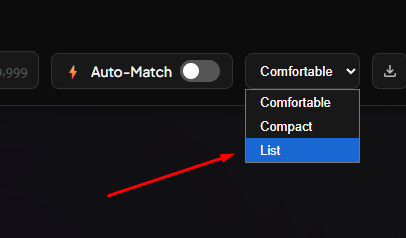
What It Does:
List View displays community wants in a sortable table format instead of card grids. You get:
Card name (clickable to card details, with hover preview)
Sets accepted (condensed summary like "Any Set" or "FDN, MKM, DSK")
Finish (Foil, Nonfoil, Etched, etc.)
Condition (minimum accepted)
Language (accepted languages)
Value (points offered)
Color (card colors)
Rarity (Mythic, Rare, Uncommon, Common)
Trader (username with link to profile)
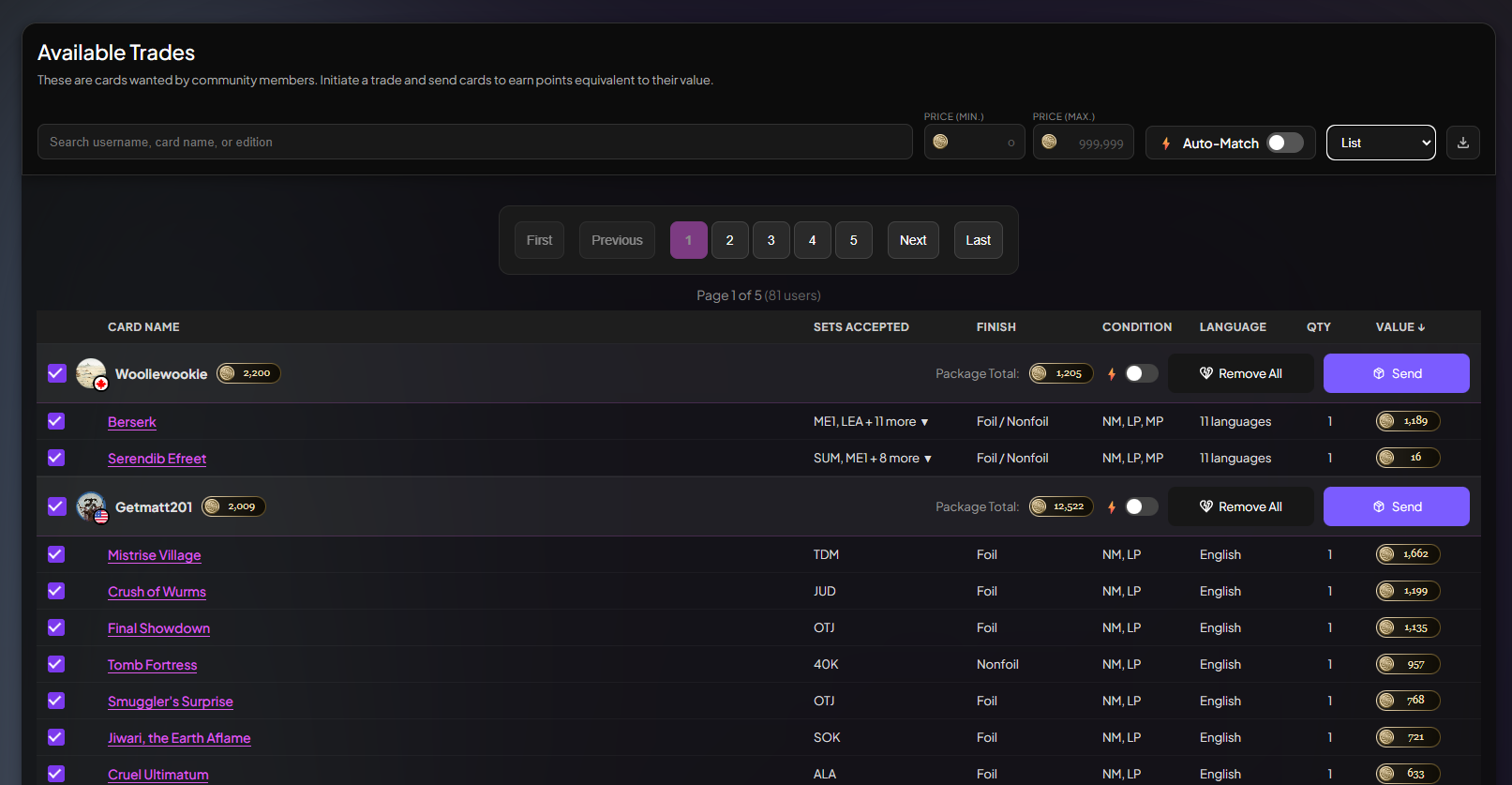
Why It Matters:
Much faster loading - No more waiting for hundreds of card images to render
Easier scanning - See 50+ users worth of wants on one screen
Sortable columns - Click any header to sort by value, card name, or trader
Expandable rows - Click a row to see full variant details (all accepted sets, finishes, conditions)
Multi-select checkboxes - Check multiple cards, then click "Initiate Trade" to build your package
Perfect for bulk sorting. If you're going through a box of Foundations cards, you can now scan the entire list of Foundations wants in seconds instead of scrolling through package after package.
Also, you can still select and remove cards from a package by clicking on the checkboxes (or rows) to build your package - same as the image view modes.
CSV Export: Take Wants Offline
The second feature is a CSV export button on the Send Cards page.
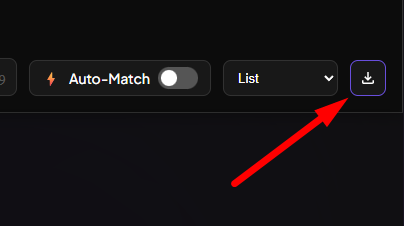
What It Does:
Click the download icon and export the entire community wants list (or your filtered results) as a spreadsheet.
Why It Matters:
Sort bulk offline - Print the CSV or open it on your phone while organizing cards at home
No login required - Reference the list anywhere without being connected to the site
Filtered exports - Apply price, set, or search filters before exporting to get exactly what you need
Fully exploded format - Each variant (set + finish + condition) gets its own row, so you can match specific cards you're holding
Example use case: You're sorting through a bulk box of Modern Horizons 2. Filter the Send Cards page to show only MH2 wants, export to CSV, and now you have a printable checklist of every MH2 card the community wants—with prices, conditions, and trader names.
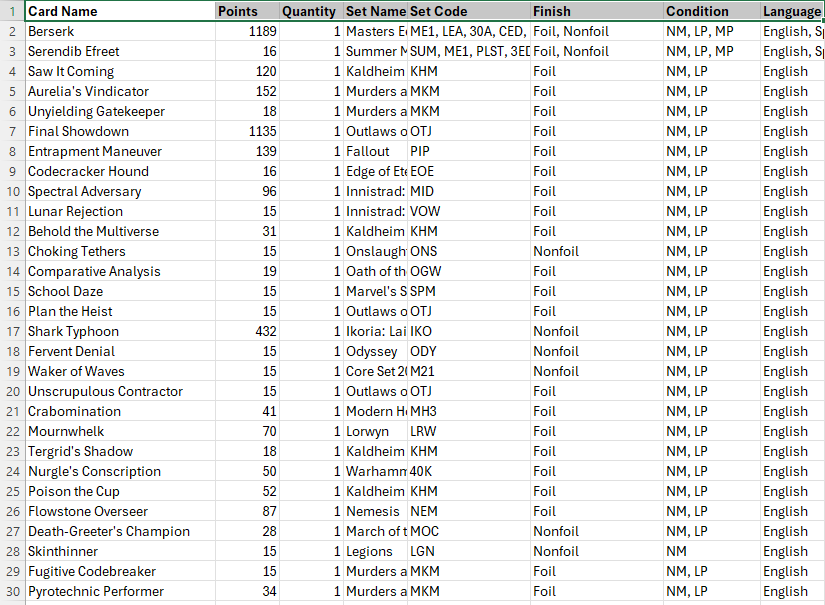
The CSV includes:
Card name
Set code and name
Finish
Accepted conditions (spelled out: "NM, LP, MP")
Language
Point value
Trader username
Profile URL
Export limit: 10,000 rows per file to prevent browser crashes. For most use cases (specific sets, price ranges), this is more than enough.
How to Use Them
List View:
Go to Send Cards
Click the view dropdown (currently showing "Comfortable" or "Compact")
Select List
Browse, sort by column, expand rows for details, and check cards to initiate trades
CSV Export:
Go to Send Cards
Apply any filters you want (price range, set, card name)
Click the download icon in the top right
Your CSV downloads as
trademagic-wants-[date].csv
Community-Driven Development
Big thanks to everyone who sends us feature requests and bug reports from the sidebar Feedback button. We read every submission and build the ones that solve real problems for the community.
Have an idea? Click the Feedback link in the sidebar and let us know. We can't build everything, but we prioritize features that:
Solve friction points in the trading workflow
Come with clear use cases and examples
Would benefit a significant portion of users
Thanks again for to EZMONEY for the the detailed request!
What's Next
We're continuing to improve the Send Cards experience based on your feedback. If you try List View or CSV export, let us know how it works for you.
Happy trading! 🎴
Keep reading
- Sustainable Economics Pt. 3: Year One
TradeMagic just turned one! Here's the year in four charts & where the economy stands - How It Works: Collection Focus Mode
One click collapses everything on My Cards except the search and your list, then makes the cards big. - What's New: Focus Mode, Trade Offer Revisions, and Sidebar Mode on /sendcards
Focus
Stay Connected
Follow TradeMagic for updates, tips, and community highlights:
Questions or feedback? We'd love to hear from you!