Know what you can send before opening the trade modal.
The Send Cards page is where TradeMagic's trading happens. You browse through packages, find cards people want that you have, and initiate trades. But there's always been one friction point: you don't know if the version you own is acceptable until you click through to build the package.
Not anymore.
What's New
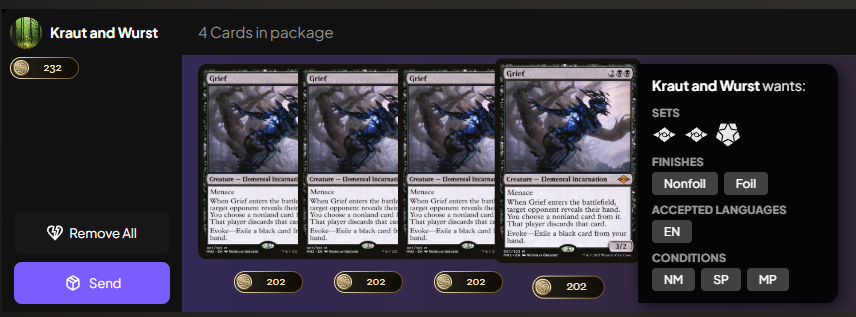
Hover over any card on the Send Cards page and you'll now see a detailed breakdown of exactly which versions the trader will accept:
Sets — Icons showing every acceptable set/edition. Looking at Modern Horizons 2 but they only want the original? You'll know instantly.
Finishes — See whether they accept Foil, Non-foil, or both. No more guessing if your foil copy works.
Languages — View all acceptable languages at a glance. English-only? Multiple languages? It's right there.
Conditions — Check which conditions they'll accept (NM, LP, MP) before sending.
All of this information appears instantly when you hover—no clicking required.
How It Works
The Send Cards page shows you packages of cards that match what you have available. Previously, you'd need to click "Send" and open the initiate package modal to see if your specific version matched what the trader wanted.
Now, just hover over any card in a package. The hover state displays all the key preference information, letting you quickly assess whether you have an acceptable version before committing to the trade.
If your version matches — Click "Send" to open the package builder and finalize your trade proposal.
If your version doesn't match — Move on to the next package without wasting clicks.
Why This Matters
Fewer rejected trades — You'll only send versions that traders actually want, reducing rejection rates and wasted effort.
Faster decision-making — No need to click through to modals or want list pages to verify preferences. Everything you need is right there on hover.
More confident trading — Know exactly what you can send before you commit to building a package.
Better workflow — Navigate the Send Cards page faster by quickly filtering out packages where your versions don't match.
The Package Builder Still Works the Same
Once you've confirmed your version matches, clicking "Send" opens the familiar package builder where you can:
Select specific editions from your collection
Adjust quantities
Choose foil or non-foil versions
Set language and condition for each card
The hover state just saves you from opening the modal when your version won't work anyway.
Built for Performance
The Send Cards page is TradeMagic's most-trafficked page, so we built this feature with performance in mind. The hover state loads instantly without impacting page speed or scrolling performance—you won't notice any lag or slowdown.
Get Started
Head to Send Cards and start hovering. You'll immediately see how much faster it is to identify sendable packages when preference information is right at your fingertips.
Happy trading!
Keep reading
- A Rebuilt Landing Page, Rarity Filters & Play Decklists
The logged-out landing page gets live data and interactive demos, every card list gains a rarity filter, and TradeMagic Play adds decklists, Safe to Draw, and tools built for big events. - Sustainable Economics Pt. 3: Year One
TradeMagic just turned one! Here's the year in four charts & where the economy stands - How It Works: Collection Focus Mode
One click collapses everything on My Cards except the search and your list, then makes the cards big.