Building a Want List just got a whole lot faster.
Whether you're chasing a complete set of Arabian Nights, collecting every card from Limited Edition Beta, or working through a cube list, adding cards one by one can be tedious. That's why we built the Add Set feature—a simple way to add every card from a set to your Want List with just a few clicks.
How It Works
Step 1: Open the Add Set Modal
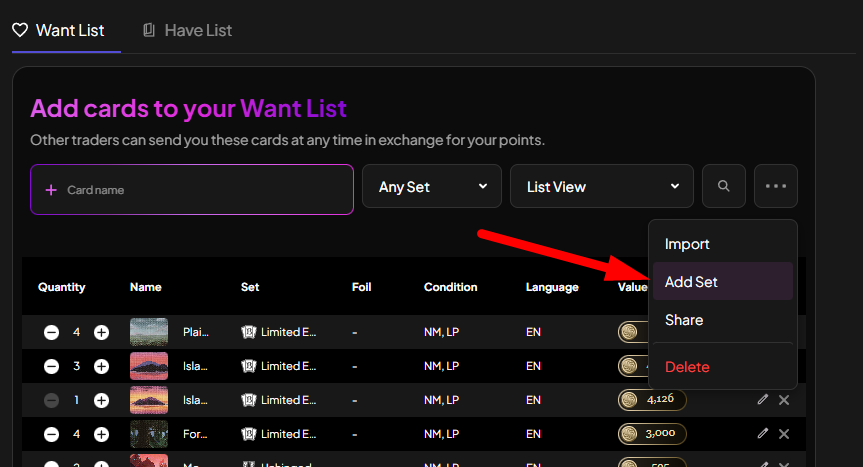
From your Want List page, click the three-dot menu (•••) in the top right corner and select Add Set.
Step 2: Search for Your Set
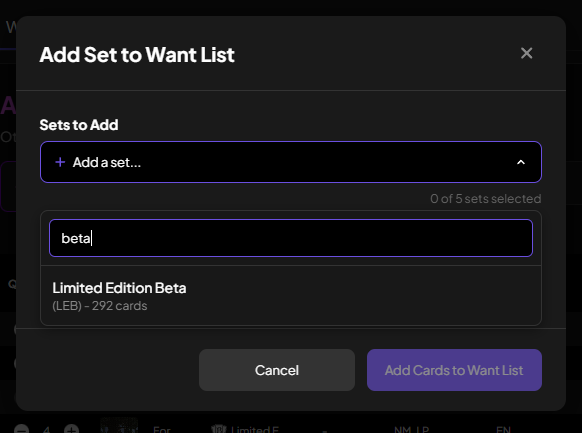
In the modal, click the + Add a set... dropdown and start typing the name of any Magic set. The search will show matching results along with the set code and total card count.
You can add up to 5 sets at once, making it easy to queue up multiple sets in a single session.
Step 3: Customize Your Preferences
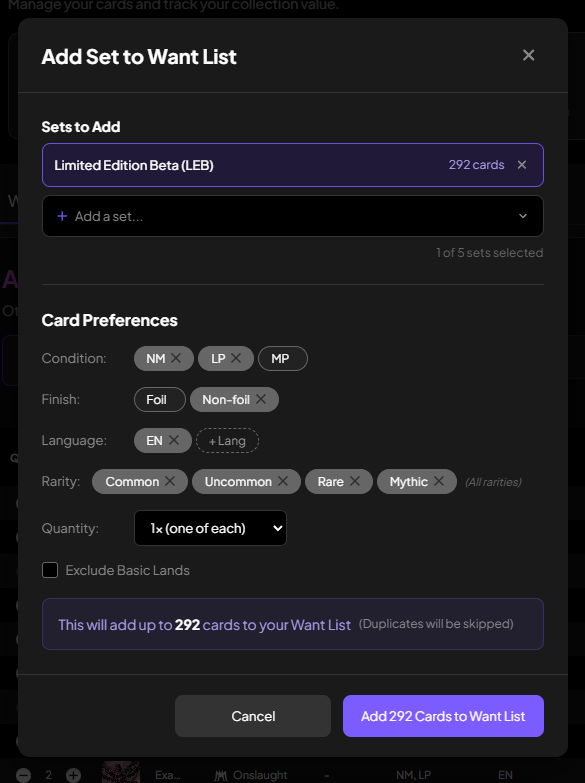
This is where the magic happens. Before adding cards, you can fine-tune exactly what you're looking for:
Condition — Select one or more acceptable conditions (NM, LP, MP, etc.)
Finish — Choose Foil, Non-foil, or both
Language — Pick your preferred language(s)
Rarity — Filter by Common, Uncommon, Rare, and/or Mythic
Quantity — Set how many copies of each card you want (1× is the default)
Exclude Basic Lands — Check this box if you don't need Plains, Islands, Swamps, Mountains, and Forests clogging up your list
The modal shows you exactly how many cards will be added based on your selections.
Step 4: Add to Your Want List
Click the purple Add Cards to Want List button and you're done. All matching cards from your selected set(s) are instantly added to your Want List.
Note: If you already have cards from that set on your Want List, duplicates will be automatically skipped—no need to worry about creating duplicate entries.
Why You'll Love This Feature
Set completionists — Track your progress toward completing entire sets without manual data entry.
Cube builders — Adding cards from multiple sets for your cube project just became trivially easy.
New collectors — Jumping into a new format? Add the staple sets and let trades come to you.
Returning players — Missed a few years of Magic? Add the sets you missed and catch up quickly.
Tips for Best Results
Use the rarity filter — If you only need the rares and mythics from a set, filter out commons and uncommons to keep your Want List focused.
Combine with your default preferences — Your global Want List preferences (set in Settings) will be pre-selected, so configure those first for faster imports.
Add multiple sets at once — You can queue up to 5 sets before clicking Add, saving you time if you're building out a larger collection goal.
Exclude basic lands — Unless you're specifically collecting basic land art, this checkbox keeps your list cleaner and more actionable.
Get Started
Head to your Want List and try it out. Click the ••• menu, select Add Set, and start building your collection the easy way.
Happy trading!
Have feedback on this feature? We'd love to hear from you on Twitter, Bluesky, or Reddit.
Keep reading
- A Rebuilt Landing Page, Rarity Filters & Play Decklists
The logged-out landing page gets live data and interactive demos, every card list gains a rarity filter, and TradeMagic Play adds decklists, Safe to Draw, and tools built for big events. - Sustainable Economics Pt. 3: Year One
TradeMagic just turned one! Here's the year in four charts & where the economy stands - How It Works: Collection Focus Mode
One click collapses everything on My Cards except the search and your list, then makes the cards big.