We just shipped a feature that makes it easier to consolidate trades and reduce shipping costs: you can now add cards to existing packages directly from the Sending page, without canceling and rebuilding trades.
This solves a common friction point: trade packages often sit in "Ready to Ship" for days while you batch shipments or wait for more cards to arrive. During that time, receivers frequently add new cards to their Want List. Previously, there was no way to include those new wants without canceling the trade and starting over. Now you can append cards to any unshipped package in seconds.
Why This Matters
Consolidate shipments
If you're sending multiple trades to the same person, you can now combine them into a single envelope instead of paying for separate shipping.
Catch new wants
Receivers add cards to their Want Lists every day. If someone adds a card you have while your package is waiting to ship, you can now throw it in without rebuilding the trade.
Batch more efficiently
Many traders wait to ship until they've accumulated several cards for each receiver. This feature makes it easy to keep adding to packages over time.
How It Works
Step 1: Open the Add Cards Modal
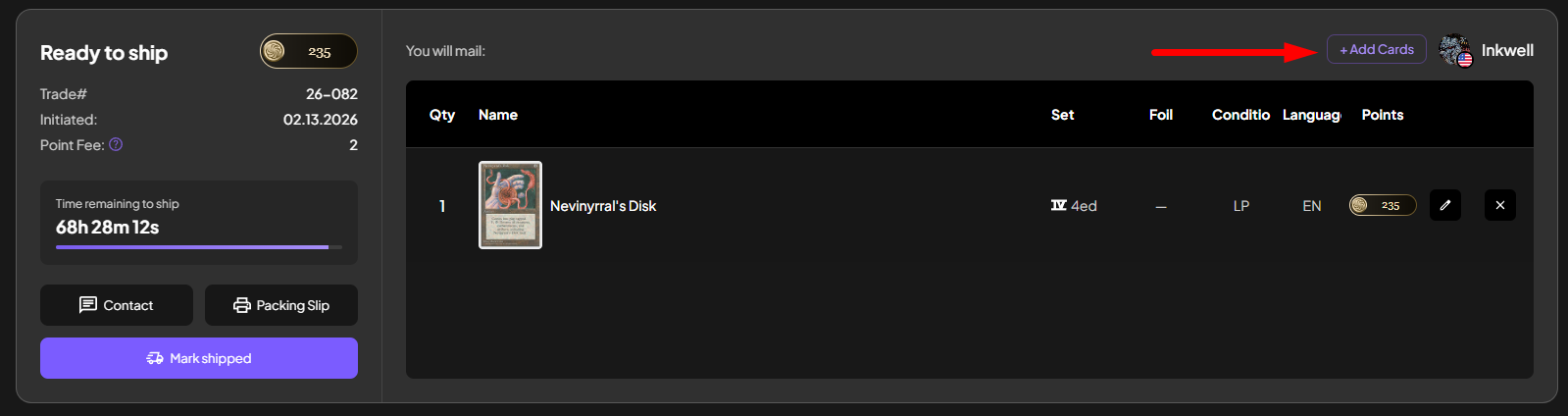
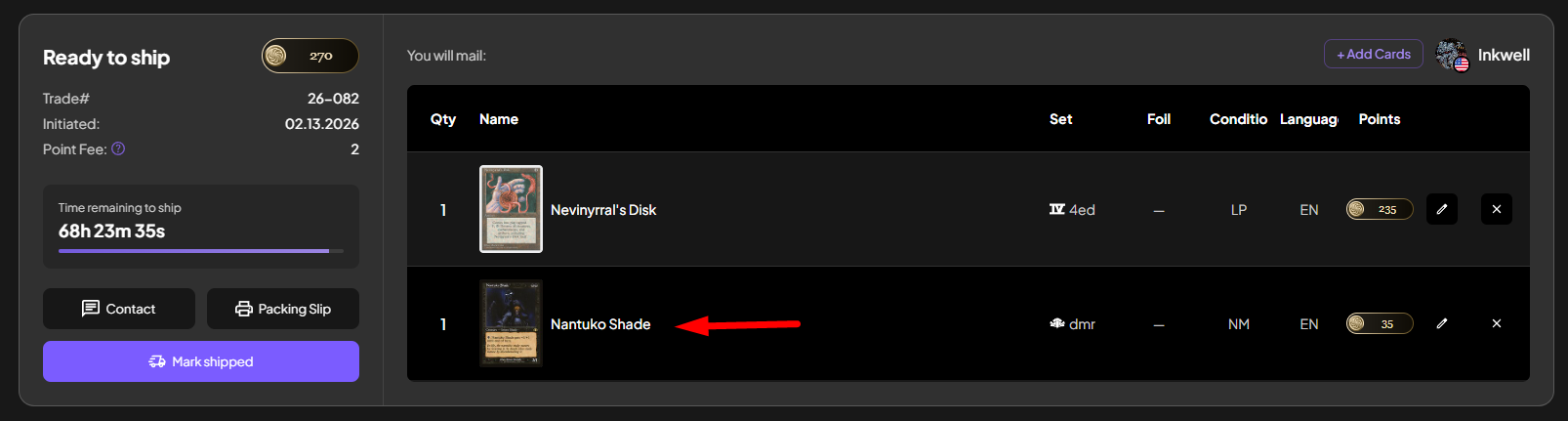
On the Sending page, find any "Ready to Ship" package and click the "+ Add Cards" button to the left of the receiver's avatar.
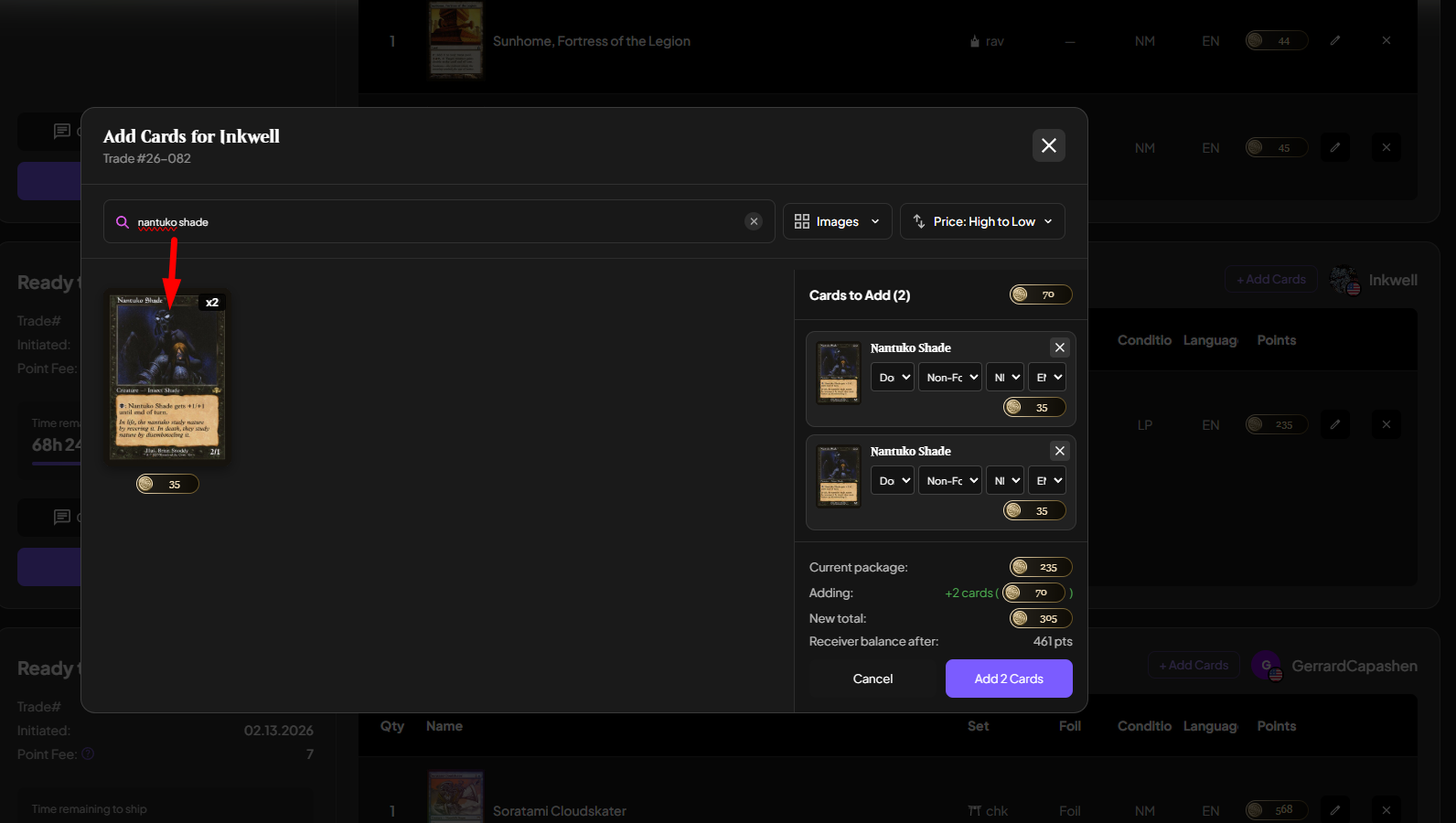
This opens a modal showing the receiver's current Want List.
Step 2: Browse Their Want List
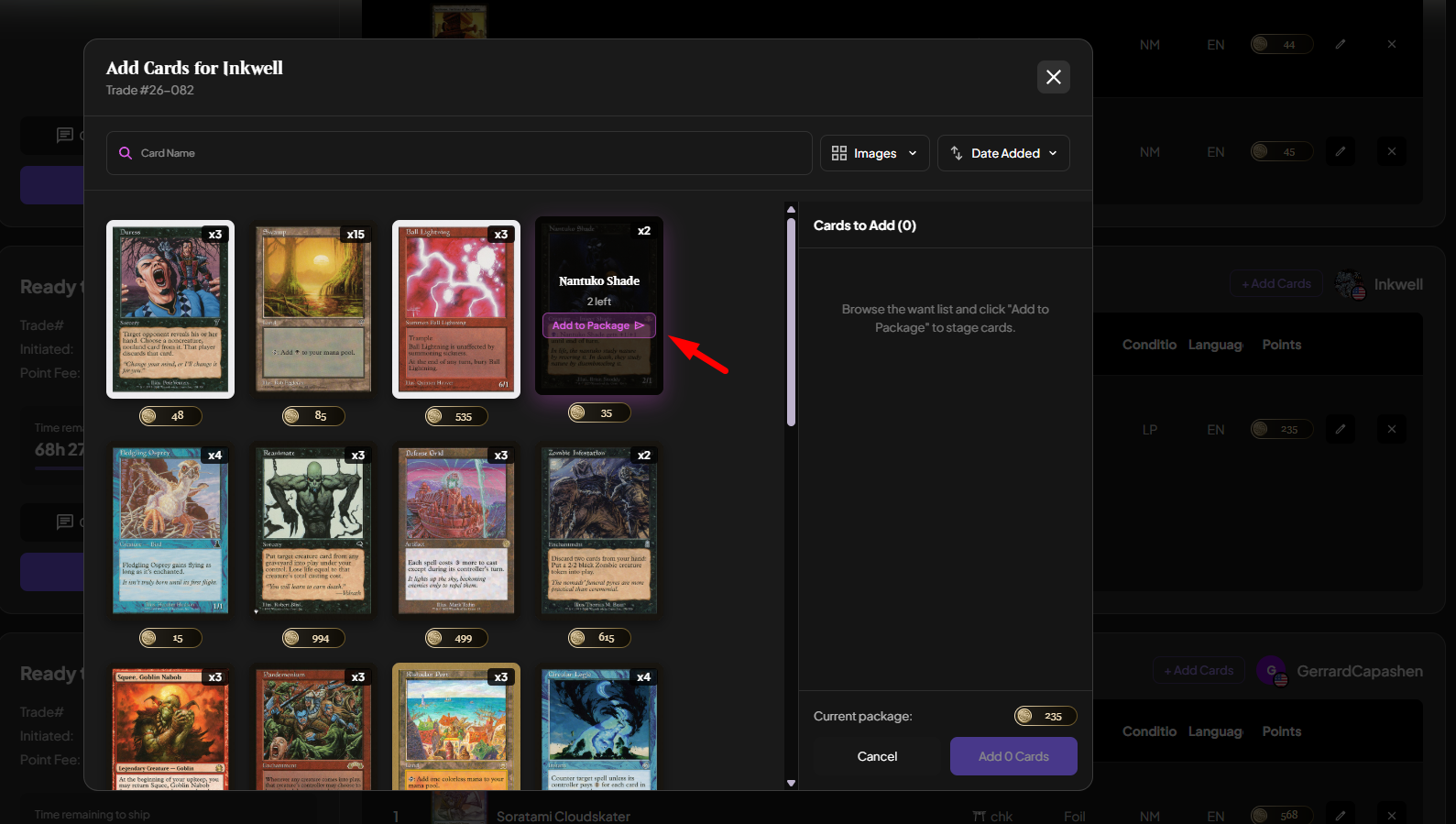
The modal displays the same Want List experience you'd see on their profile page:
Search bar - Filter by card name
Sort dropdown - Date Added, Price High to Low, Price Low to High, Name A-Z, Name Z-A
View toggle - Switch between card images and list view
Full browsing - Scroll through their entire Want List
Cards already in your current package are visible but marked with an "In Package" indicator, so you have full context of what you're already sending.
Step 3: Add Cards
Click "Add to Package" on any card they want. This adds the card to a sidebar on the right where you can customize:
Set/edition - Choose which printing
Foil finish - Foil, non-foil, etched, etc.
Condition - Near Mint, Lightly Played, etc.
Language - English, Japanese, etc.
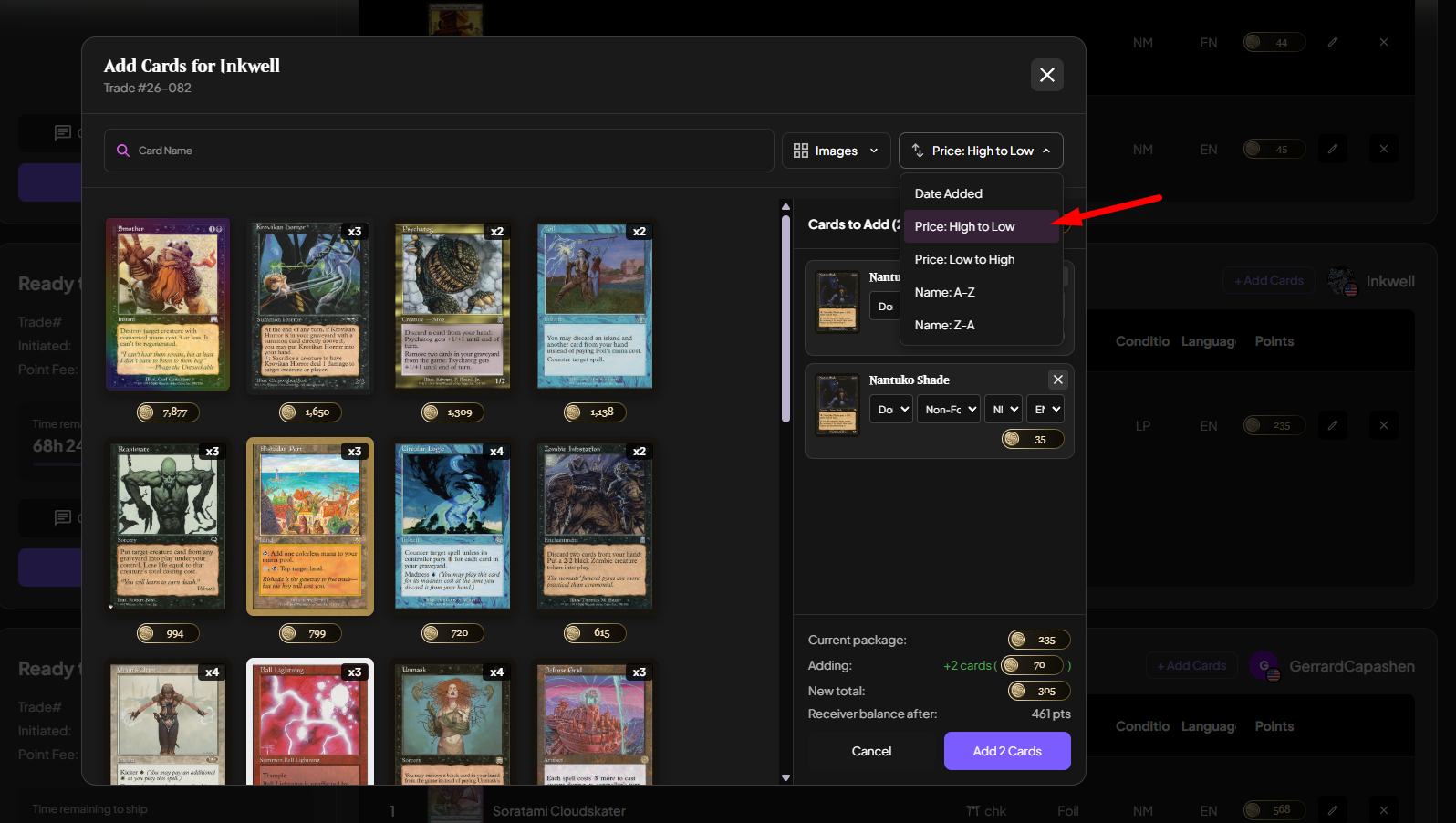
The sidebar shows a running tally:
Number of cards you're adding
Point value of additions
New package total
Receiver's remaining balance (updated in real-time)
If the receiver can't afford additional cards, the system blocks further additions and shows a clear message.
Step 4: Confirm Your Additions
Once you've added all the cards you want to include, click "Add 2 Cards" (or however many you're adding) at the bottom of the sidebar.
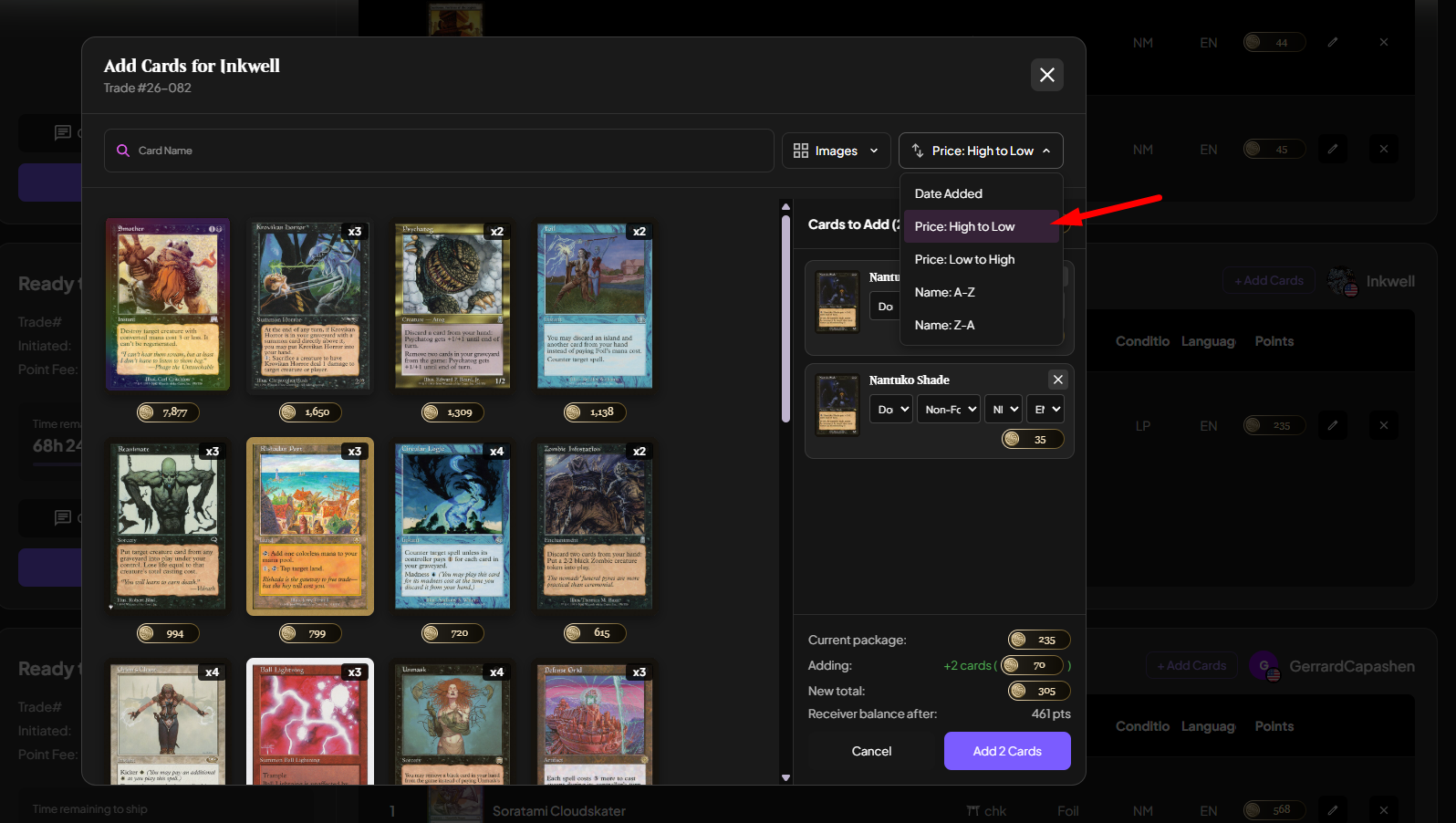
The modal closes, the cards are added to your package, and the Sending page refreshes to show the updated package with all new cards included.
If you change your mind, click "Cancel" to close the modal without making any changes.
Use Cases
Scenario 1: Batching shipments
You initiate a trade with Inkwell on Monday for 3 cards. On Wednesday, you pull 2 more cards from your collection that they want. Instead of creating a second trade, you open the existing package, add the 2 new cards, and ship everything together.
Scenario 2: Catching new wants
You have a package ready to ship to GerrardCapashen. Before you mail it, you check their profile and notice they added 5 new cards to their Want List since you built the trade. You open the Add Cards modal, search for those cards, add the ones you have, and increase the package value without starting over.
Scenario 3: Consolidating multiple trades
You have three separate "Ready to Ship" packages going to the same person. You open each one, add all the cards to the first package, cancel the other two trades, and ship one consolidated envelope.
Important Notes
Only works on unshipped packages
The "+ Add Cards" button only appears on "Ready to Ship" packages. Once you mark a package as shipped or it's in transit, you can't add more cards.
Receiver's balance is validated
You can only add cards the receiver can afford based on their current point balance. If they don't have enough points, the system blocks additions and shows their remaining balance.
Search works instantly
The search bar uses the same server-side search as the profile page Want List, so you can quickly filter large Want Lists by typing a few letters.
Thanks for the feedback!
We're committed to making trading easier with every update. If you have suggestions for features that would improve your trading workflow, we'd love to hear them.
Click the Feedback link in the sidebar anytime to share your ideas. We read every submission and prioritize features that solve real problems for the community.
Happy trading! 🎴
Keep reading
- A Rebuilt Landing Page, Rarity Filters & Play Decklists
The logged-out landing page gets live data and interactive demos, every card list gains a rarity filter, and TradeMagic Play adds decklists, Safe to Draw, and tools built for big events. - Sustainable Economics Pt. 3: Year One
TradeMagic just turned one! Here's the year in four charts & where the economy stands - How It Works: Collection Focus Mode
One click collapses everything on My Cards except the search and your list, then makes the cards big.