Published on: December 6, 2025
If you've got hundreds or thousands of cards on your Have List, you know the pain: scrolling through the Send Cards page, manually scanning every trader's Want List to find cards you actually own. It can be tedious and time-consuming.
Today we're fixing that.
Big thanks to user Tevildo for requesting this feature and clearly articulating the problem.
What Auto-Match Does
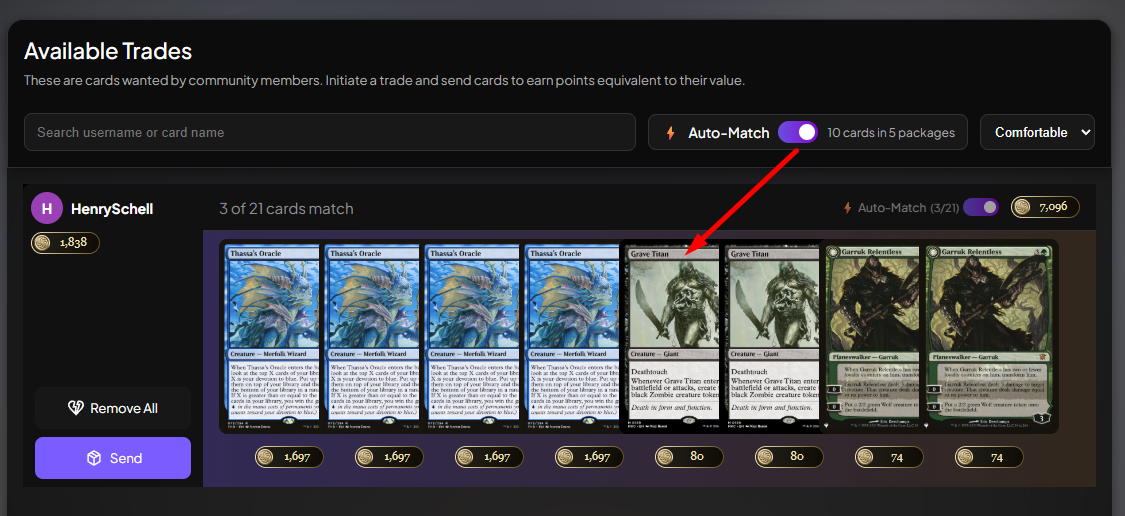
Auto-Match automatically filters the Send Cards page to show only cards from your Have List. Instead of seeing every card that every trader wants (which could be thousands), you only see the cards you can actually send.
The feature respects all card specifications—edition, condition, language, and foil status—so you're only seeing true matches where what you have aligns with what they want.
How to Use It
Step 1: Build Your Have List
The more cards you add to your Have List, the better Auto-Match works. You can add cards manually or use our import tool to bring in your collection from Archidekt, Moxfield, Cardsphere, or other platforms.
Step 2: Go to Send Cards
Navigate to https://trademagic.gg/sendcards
Step 3: Toggle Auto-Match ON
Click the Auto-Match toggle at the top of the page. The page instantly filters to show only cards you own.
That's it. No more manual scanning.
Global vs Individual Auto-Match
Here's where it gets interesting: Auto-Match works two ways.
Global Toggle
The global toggle (located between the search field and the view mode dropdown) filters all trading packages at once. When you turn it on, every trader's Want List below shows only the cards you have available.
This is perfect for quickly scanning the entire Send Cards page to see all your trading opportunities at a glance.
Individual Toggle
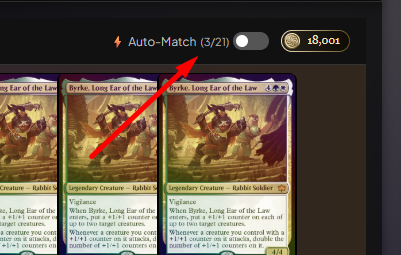
Each trading package (a single trader's Want List) also has its own Auto-Match toggle. These let you filter specific traders' lists individually while leaving others unfiltered.
This is useful when you want to:
Focus on one particular trader while browsing all cards from others
Compare what you have vs. what you don't have for a specific trade
Selectively filter high-priority traders without affecting the rest
When Global Auto-Match is ON, all individual toggles are forced ON and disabled. When Global is OFF, individual toggles work independently.
Real-World Example
Let's say you have 800 cards on your Have List and you're looking at the Send Cards page with 15 active traders.
Without Auto-Match: You're scrolling through 1,200+ cards across all those Want Lists, manually checking which ones you own. It takes 20+ minutes to identify viable trades.
With Auto-Match ON: The page filters down to 47 cards across 3 traders—the only cards you can actually send. You identify your best trades in under a minute.
That's the difference.
Your Settings Persist
Once you toggle Auto-Match ON, it stays ON across sessions. When you log back in tomorrow, Auto-Match will still be active—no need to reconfigure it every time.
Empty States
If a trader's Want List has zero matches with your Have List, the package stays visible but shows "No cards from your Have List match this trader's wants" with a count of "0 matches."
You can click "View all cards" to temporarily disable Auto-Match for that specific package if you want to see their full Want List.
Works With Search
Auto-Match filters stack with the search field. If you search for "Lightning Bolt" while Auto-Match is ON, you'll only see Lightning Bolts that are in your Have List. Filters apply with AND logic, so they compound rather than conflict.
Get Started
Auto-Match is live now on the Send Cards page. If you haven't built your Have List yet, now's a great time to import your collection and start using it.
Happy trading 🎴
֍ Create a free account • Follow us: Twitter • Bluesky • Reddit • More articles
Keep reading
- How to Build Community by Trading Cards
Unexpected and Delightful Throw-Ins - The Joy of Trading Cards Again
Why Trade Magic Is Bringing Back Magic's Best Kept Secret - Why Magic Players Need a Better Way to Trade
Why the magic trade market needs a purpose-built platform in 2026