Already tracking your collection on Deckbox? Bring it to TradeMagic in minutes and start trading immediately. Our import tool transfers your entire inventory and tradelist automatically.
This guide will show you how to export your inventory or tradelist from Deckbox and import it directly into TradeMagic, whether you're setting up your Have List, Want List, or both.
Important Note About Card Editions
Deckbox requires you to specify a card edition for every card. However, TradeMagic's Want Lists are more flexible—you can accept any printing of a card, not just one specific edition.
If you want to accept any version of a card on your Want List:
After exporting from Deckbox but before importing to TradeMagic, open the CSV file and delete the "Edition" or "Set" column entirely. This tells TradeMagic you'll accept any printing of those cards, giving you more trade opportunities.
For Have Lists: Edition information is required and should be kept intact, since every card you own has a specific printing with a specific value.
Why Import Your Collection?
If you've spent time cataloging your collection on Deckbox, you shouldn't have to rebuild it from scratch to start trading. TradeMagic's import tool brings your entire collection over in minutes, so you can focus on trading instead of data entry.
Benefits of importing:
Save hours of manual data entry – No need to add cards one by one
Preserve your collection data including quantities and card details
Start trading immediately without rebuilding your lists
Import both your Inventory (Have List) and Tradelist (Want List)
Before You Start
What you'll need:
Your Deckbox account with an Inventory or Tradelist
A TradeMagic account (sign up free at trademagic.gg)
2-3 minutes for the import process
(Optional) A spreadsheet program if you want to edit the CSV before importing
Method 1: Importing Your Tradelist (Want List)
Your Deckbox Tradelist becomes your TradeMagic Want List—the cards you're looking to acquire.
Step 1: Export Your Tradelist from Deckbox
Log in to Deckbox
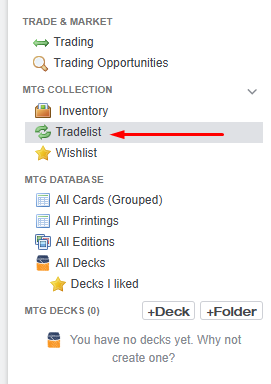
Click "Tradelist" in the sidebar
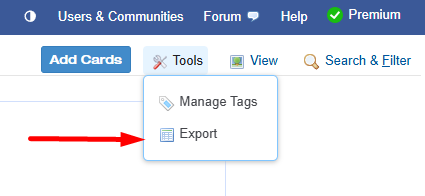
Click "Tools" in the header
Click "Export"
The CSV file will download to your computer (typically named something like deckbox_tradelist.csv)
Step 2: (Optional) Edit the CSV for Flexible Editions
If you want to accept any printing of your wanted cards (recommended for maximum trade opportunities):
Open the downloaded CSV file in Excel, Google Sheets, or any spreadsheet program
Find the column labeled "Edition" or "Set"
Delete the entire column
Save the file
Skip this step if you only want specific editions of your wanted cards.
Step 3: Import to TradeMagic
Navigate to your TradeMagic Want List: https://trademagic.gg/my-cards/want-list
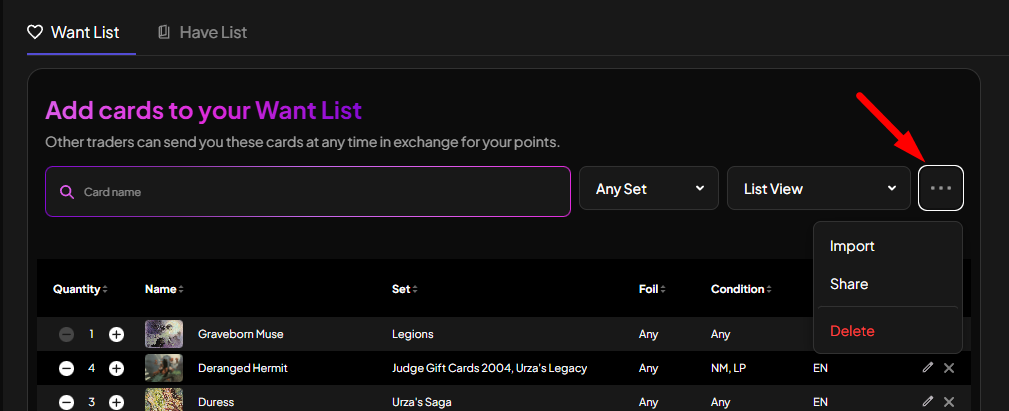
Click the three-dot menu (...) in the top right corner
Select "Import" from the dropdown
Choose "Upload CSV" as your Input Method
Drag and drop the Deckbox CSV file into the drop zone (or click to browse)
Click "Import" to start the process
Processing time: Depending on your collection size, this may take 1-3 minutes. Don't close the browser window while importing.
Step 4: Verify Your Import
Once the import completes:
Review your Want List to confirm cards imported correctly
Check quantities to ensure they match your Deckbox Tradelist
Verify whether edition preferences were set correctly (any edition vs. specific edition)
Method 2: Importing Your Inventory (Have List)
Your Deckbox Inventory becomes your TradeMagic Have List—the cards you own and can trade away.
Step 1: Export Your Inventory from Deckbox
Log in to Deckbox
Click "Inventory" in the sidebar
Click "Tools" in the header
Click "Export"
The CSV file will download to your computer (typically named something like deckbox_inventory.csv)
Step 2: Import to TradeMagic
Navigate to your TradeMagic Have List: https://trademagic.gg/my-cards/have-list
Click the three-dot menu (...) in the top right corner
Select "Import" from the dropdown
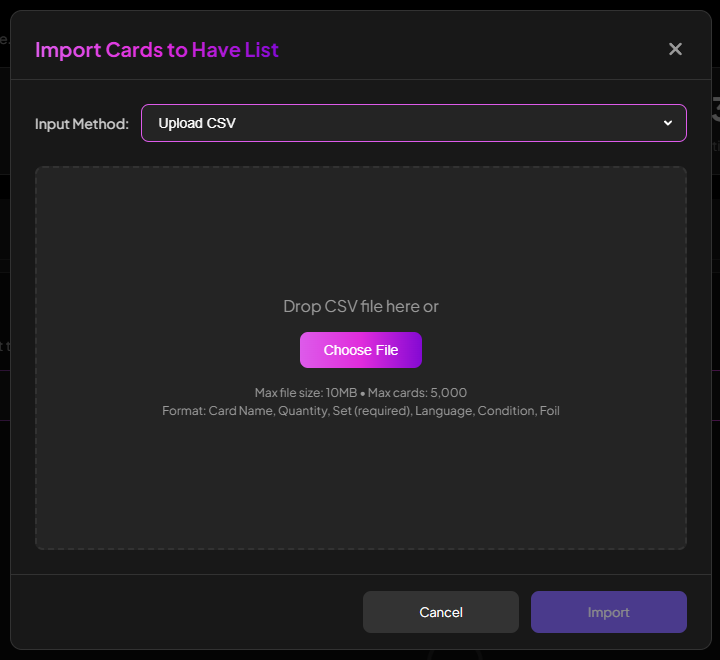
Choose "Upload CSV" as your Input Method
Drag and drop the Deckbox CSV file into the drop zone (or click to browse)
Click "Import" to start the process
Processing time: Depending on your collection size, this may take 1-3 minutes. Don't close the browser window while importing.
Step 3: Verify Your Import
Once the import completes:
Review your Have List to confirm cards imported correctly
Check quantities to ensure they match your Deckbox Inventory
Verify card editions and conditions match your physical collection
Troubleshooting Common Issues
Import taking too long?
Large collections (1000+ cards) may take 2-3 minutes. Be patient and don't refresh the page.
If it takes longer than 5 minutes, contact support at support@trademagic.gg
Cards not importing correctly?
Check your file: Make sure you downloaded the CSV directly from Deckbox without corrupting it
Verify edition column: For Have Lists, ensure the edition/set column is intact
Check file format: Ensure the file is saved as .csv, not .xlsx or another format
Missing cards after import?
Some card editions may not be available yet on TradeMagic. We're constantly adding new sets.
Check the import log for any errors or skipped cards
Cards from very new sets may not be in our database yet
Want List not showing "any edition"?
Make sure you deleted the Edition/Set column from the CSV before importing
If you already imported with editions specified, you can manually edit each card or re-import after fixing the CSV
Accidentally imported to the wrong list?
You can manually remove cards or delete the list
Then re-import to the correct list (Have or Want)
Frequently Asked Questions
Q: Will this overwrite my existing TradeMagic collection?
A: No, imported cards are added to your existing collection. Duplicates are merged based on card name and edition.
Q: Can I import from other platforms besides Deckbox?
A: Yes! TradeMagic supports imports from Deckbox, Moxfield, Cardsphere, Archidekt, Manabox, and other platforms that export standard CSV formats. More integrations coming soon.
Q: What data gets imported?
A: Card names, editions, quantities, and conditions (if included in the CSV). Pricing is automatically applied based on current market values.
Q: Should I keep edition information for my Have List?
A: Yes, always keep edition information for your Have List. Each card you own is a specific printing with a specific value, so this information is required.
Q: Should I remove edition information for my Want List?
A: It depends on your preferences:
Remove editions if you'll accept any printing (more trade opportunities)
Keep editions if you only want specific printings (collecting specific sets, prefer certain artwork, etc.)
Q: Can I undo an import?
A: Not automatically, but you can manually remove cards or contact support for help clearing your list.
Q: Is there a limit to how many cards I can import?
A: No limit! Import collections of any size, though larger collections take longer to process.
Ready to Start Trading?
Once you've imported your collection:
Review your Want List to make sure it's complete
Check the Send page to see if anyone wants cards you have
Start trading! TradeMagic makes it easy to find matches and ship cards
New to TradeMagic? Check out our How It Works guide to learn about asynchronous trading with Trade Credits.
Need Help?
If you run into issues importing your collection:
Email support: support@trademagic.gg
Check our Help Center: trademagic.gg/articles
Happy trading! 🎴
Keep reading
- How to Build Community by Trading Cards
Unexpected and Delightful Throw-Ins - The Joy of Trading Cards Again
Why Trade Magic Is Bringing Back Magic's Best Kept Secret - Why Magic Players Need a Better Way to Trade
Why the magic trade market needs a purpose-built platform in 2026